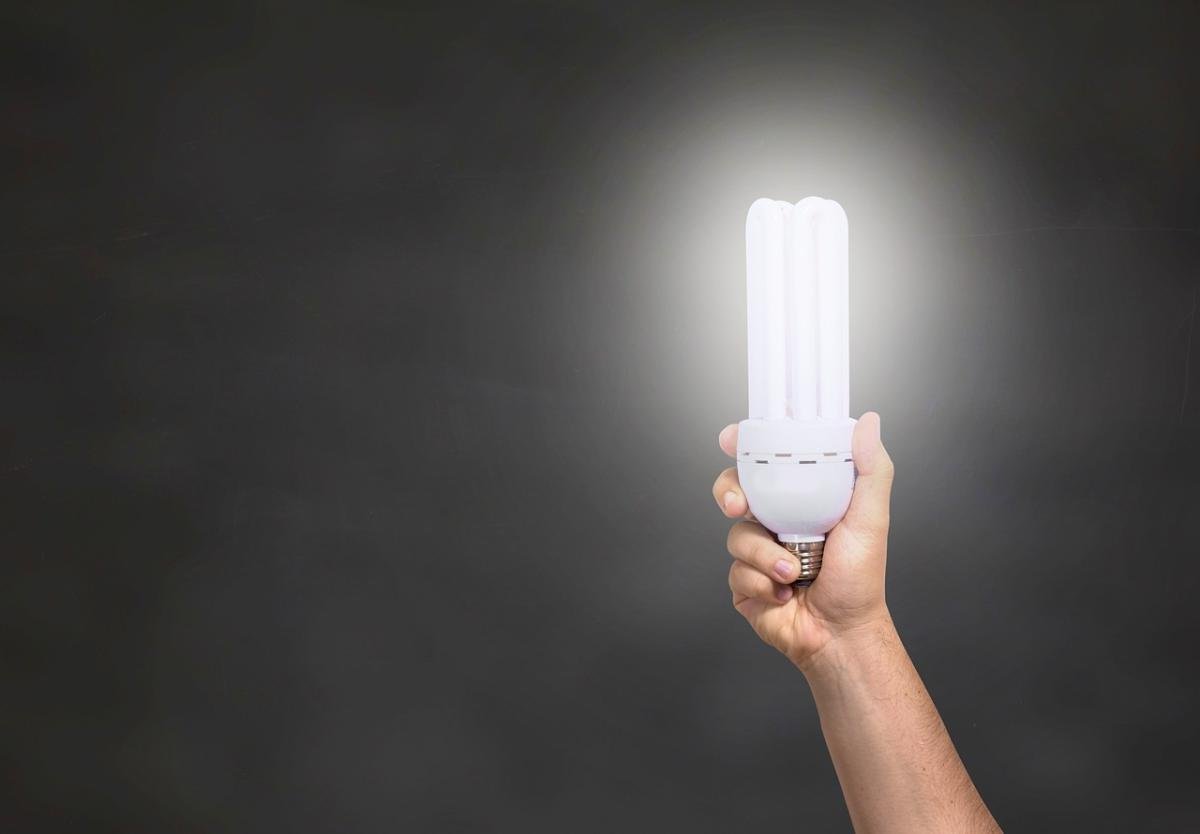
Smart bulbs connect to your WiFi, making it easy to control your lighting from anywhere with your smartphone or tablet. Setting them up is usually a breeze, and once they're connected, you can dim the lights, change colors, or even set schedules, all without lifting a finger.
To get started, you’ll need to download the app associated with your smart bulb. Most brands have their own app, which guides you through the setup process. After installing the app, you’ll follow a series of simple prompts to connect your bulb to your home WiFi. It's as easy as flipping a switch!
Once your smart bulb is connected, it communicates with your WiFi router using a specific frequency, typically 2.4 GHz. This helps it maintain a strong connection, even if there are a few walls between the bulb and your router. Remember, having a stable WiFi network is key to enjoying all the features of your smart bulb.
With everything set, you can now control your lights with just a few taps on your smartphone. You can also link your smart bulbs to voice assistants like Alexa or Google Assistant, so controlling your lights can be as simple as saying, “Turn on the living room lights.” It’s a game-changer for creating the perfect ambiance in your home!
Benefits of Using WiFi Smart Bulbs
WiFi smart bulbs can really change the vibe of your home. Imagine being able to control your lights right from your smartphone. With just a tap, you can brighten up a room, set a cozy mood, or turn off the lights from your bed. No more running up and down the stairs because you forgot to switch off the living room lights!
One of the coolest features of these bulbs is the ability to customize colors and brightness. Want a warm yellow during movie night or a fun blue for a party? You got it! Smart bulbs can often create millions of colors to match your mood or the occasion. Plus, you can schedule when the lights come on or off, making it super easy to wake up to a beautifully lit room.
Security is another big plus. You can set your smart bulbs to mimic your usual lighting patterns when you’re away. This creates the illusion that someone’s home, scaring off any would-be intruders. You can even control them while on vacation through your phone, so your home always looks occupied.
Installation is usually a breeze. Just screw the bulb in, connect it to your WiFi, and you're good to go. Many brands offer user-friendly apps that make the setup process quick and straightforward. Plus, smart bulbs are energy-efficient, which means you can save on those electricity bills while still enjoying all the cool features!
Controlling Smart Bulbs with Your Phone
Imagine walking into your home and your lights come on, all because your phone did the trick. That’s the magic of WiFi smart bulbs! Controlling these bulbs with your phone is super easy and convenient. All you need is your smartphone, the right app, and a solid WiFi connection.
First off, you’ll want to download the specific app that goes with your smart bulbs. Most brands have their own apps, which let you control brightness, colors, and even set schedules. So, if you want to wake up to soft, warm light instead of a blaring alarm, just program it the night before!
Once your app is set up, connect it to your bulbs. This usually involves a quick pairing process through WiFi. After that, you can give your bulbs fun names like "Living Room Light" or "Mood Setter." You won’t believe how easily you can dim the lights for movie night or turn them on from anywhere in your home.
And here’s the really cool part: many smart bulbs work with voice assistants. If you've got Alexa or Google Assistant, you can just say, “Turn on the kitchen lights,” and boom! The lights respond without needing to touch your phone. Talk about a smart home, right?
Troubleshooting Common Smart Bulb Issues
Smart bulbs can brighten up your home and make life easier, but they sometimes run into a few hiccups. Don't worry! Here’s a friendly guide to help you troubleshoot some common issues.
If your smart bulb isn't connecting to WiFi, first check if your internet is working. Sometimes the simplest fix is just a quick router reset. Make sure you’re also using the right WiFi password. Many smart bulbs only work with 2.4GHz networks, so if you're on a 5GHz network, switch it up. Check your bulb's app for setup instructions—there might be specific steps you need to follow.
Another common issue is the bulb not responding to commands. Start by unplugging the bulb for a few seconds and plugging it back in. If that doesn't help, try removing the bulb from the app and adding it again. Make sure your app is updated to the latest version, too. Bug fixes and improvements are often included in updates, and they can resolve glitches.
Finally, if your smart bulb keeps flickering, it may not be fully seated in the socket. Turn it off and on again to ensure it's snug. Flickering can also be caused by incompatible dimmer switches, so check if you have one installed. If that's the case, you might need to switch to a smart dimmer that works specifically with your bulbs.